
UPDATES

October 14, 2025

📣 Make Your Voice Heard — Introducing Community Credits! 🎫

The game of Munzee has always thrived thanks to you — our amazing global community of players! Now, it’s time to take that one step further with a brand-new way to shape the future of the game. Introducing Community Credits — a special new currency that lets you help decide which updates and features we work on next! To access these latest features, you’ll need to make sure you’re on the latest version of Munzee from the App Stores (4.1.246 on both iOS and 4.1.247 Android), then restart the app to pull down the latest over-the-air update version #1207.

With Community Credits, you’ll be able to vote toward proposed gameplay updates that we put forward to the community. Your votes will directly influence the direction of Munzee, giving you a real say in how the game evolves.


💰 How to Earn Community Credits

Players can earn Community Credits (CCs) by participating in a variety of gameplay activities and events! To start, you’ll be able to hold a maximum of 1,000 CCs at a time — though this limit may increase in the future. Note – This means if you already have 1,000 CCs, you will not be able to earn anymore until you spend some of the credits you have.

We want dedicated, active players to have the strongest voice in shaping the direction of Munzee. Here’s where you can start earning Community Credits right away:

  • 🎉 October Special Events
  • ⚔️ Clan Wars
  • 🕵️ Select Daily ZeeOps
  • 🗓️ Munzee Monthly Moments
  • 🌸 Garden of the Month

Premium players have received the very first Community Credits to use right now!
Keep your eyes peeled — more ways to earn Community Credits will be coming soon!
*maybe a Widdl Cap bonus for some lucky players???*


🗳️ 1st Community Credits Vote!

Our very first vote is officially LIVE — and we can’t wait to see what the community decides! Voting will officially end next Friday, October 24th at 12:00 MHQ, so be sure to get your votes in before then! Below are the four feature ideas you can contribute your credits toward:

🧪 Credit Potion

Earn bonus credits when capturing certain Munzee types — like Jewel Shards from Jewels or Cogs from Mechz! A rewarding way to boost your daily capping fun.

CapOn Booster

Double your CapOn points! Activate this booster during Events or busy capture days to earn twice the points when others cap your Munzees.

🎯 Targeted Magnet Events

Special magnet events where specific types attract specific bouncers — like Earth Mysteries pulling Widdlz or Diamonds pulling Cubimals! Plan your magnet strategy and reel in the rewards.

🚀 Virtual Auto Capture Booster

Capture all Virtual Munzees within 500 feet automatically while moving around! Just activate and let the points roll in — no tapping required.


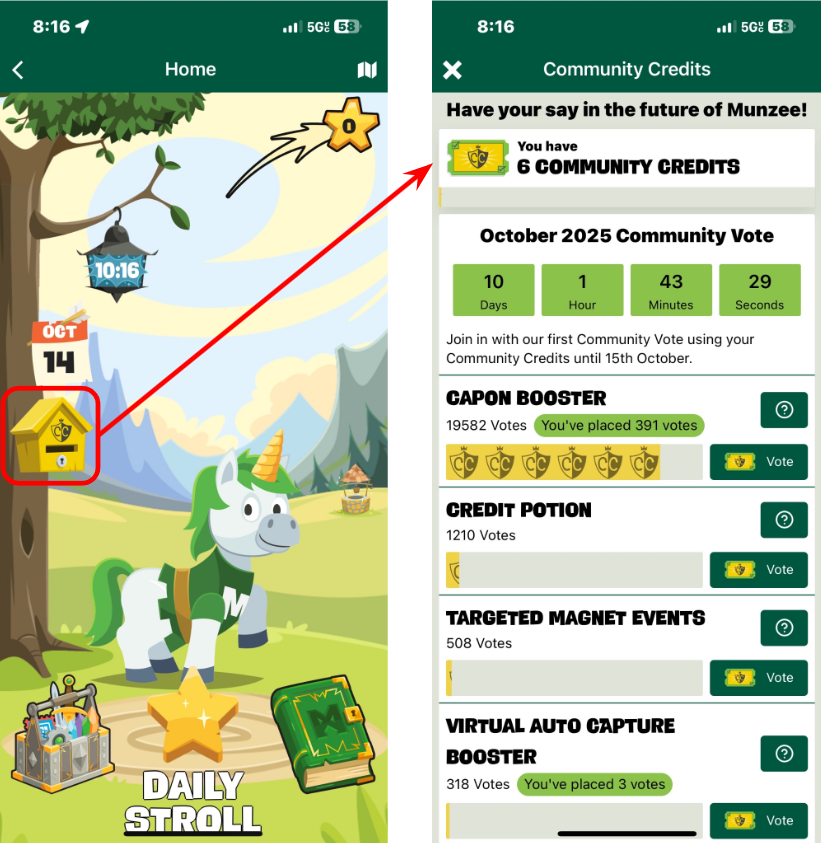
🎟️ Tap the Ballot Box to Vote!

You can access the Community Credits voting area by visiting the Camp Hub and tapping on the new Ballot Box, or head directly to CuppaZee here to cast your votes!

Voting Details:

  • Players can contribute any number of Community Credits toward a vote.
  • Players can vote toward more than one option if desired.
  • Tap on the Question Mark icon to view more details about a feature
    • This pop up will also display profile pictures of the Top 10 Players who have contributed the most votes to the feature

Please note: while Community Credit votes will strongly influence the direction of future updates, a winning option does not guarantee immediate development or release. These votes help our team better understand what features and ideas players are most excited about — and we’ll carefully review and consider every result before moving forward.

In some cases, if one option becomes a clear and overwhelming favorite, we may temporarily remove it as a “confirmed frontrunner” so that voting can continue between the remaining options. This ensures all ideas get fair attention while helping us gauge overall player interest across multiple potential features.


🏅 New Badge: Community Choice

Every voice counts — and now yours does too! Earn the brand-new Community Choice badge when you cast your first vote by using 1 Community Credit to influence the future of Munzee.


🌍 Shape the Future of Munzee

It’s time to get out there, earn some Community Credits, and make your mark! Whether you’re passionate about scoring strategies, boosters, or bouncers, your voice will help decide what’s next for Munzee.

So start playing, start earning, and start voting — the future of Munzee is in your hands!

Munzee on!

September 18, 2025

👀 Did You Notice These NEW CuppaZee Features? ☕✨

The Template option wasn’t the only update to CuppaZee when we released the Electric Eel Gardens a few weeks ago! Eagle-eyed CuppaZee users may already be aware of these changes, but we wanted to make sure nobody missed out on improvements to their CuppaZee and Munzee experience!

Easily Check Garden Pin Captures!

This is for those of you who are trying to earn the badge for capturing all the pins in a BVG — though it also applies to regular Gardens as well! We know it can sometimes be difficult to tell if you’ve captured ALL the pins, especially if you capture pins from multiple BVGs in the same day.

If you’ve captured at least 1 pin in a Garden, you will see a NEW “Your Capture Progress” section next to the “Garden Status” section when you view that Garden on CuppaZee:

In addition, if you click on any of the buttons in the “Garden Pins” section to view the list of munzees in a panel on the right, the pins you have captured will show the red checkmark pin icon next to it, like so:

Now that you can easily check if you’ve captured all the pins in a Garden, you won’t have to guess if you should have earned a badge or not! As always, if you have met the requirements for a badge but haven’t received it, AND it’s been more than 1 MHQ day since you’ve met the requirements, please feel free to submit a support ticket by e-mailing support@munzee.com!


Move Multiple Garden Layers At Once!

Click on the new [Move Layers] button in the bottom-left corner of the Layers panel, then check the box next to each layer you’d like to move!

You can also rotate multiple layers together as well!


Copy Garden Layers!

Click the [∨] button next to the layer you want to copy to expand its view. Then click [≡] next to its name to access its individual menu. You’ll see a new [Copy Layer] button there!

You’ll have the option to copy a blank layer (meaning, a layer with an empty grid of the same layout, rotation, width, height, and location) or a true copy, pins and all.


These are just a few of the MANY updates Sam has worked on recently — to view the complete list, head over to the CuppaZee Changelogs at https://web.cuppazee.com/settings/changelogs (at the time of writing, the latest log is 2025.09.03a)!

Munzee on!

September 4, 2025

✨ NEW Skin Randomizer to Shuffle Styles 🔀

Love collecting skins, but don’t enjoy the hassle of changing them every time? We’ve got just the thing for you! Introducing the Skin Randomizer – a brand-new feature that lets your bouncers automatically rotate through your owned skins. Now your collection can shine without any extra work from you!

How It Works

The Skin Randomizer is available exclusively for Premium Members. Once activated, each time your bouncer is captured, its skin will automatically switch to a different one from your owned collection. It’s the perfect way to keep your Munzee map fresh and full of surprises!

Here’s how to activate the feature (in-app or on the Munzee website):

  1. Go to the Munzee Details page of the bouncer you’d like to manage
  2. Tap the option to Convert
  3. Select the new Skin Randomizer option in the list to toggle it on
  4. Confirm your choice – and you’re set! The next capture on that bouncer will trigger an automatic skin change.

👉 Not Premium yet? Sign up HERE today in our online store to unlock this and tons of other exclusive features, bonuses, and benefits!

Skins Back in Stock!

To celebrate this launch, we’ve brought back a handful of fan-favorite skins in the Freeze Tag Online Store! If you missed out on them the first time, now’s your chance to grab them and make the most of the new Skin Randomizer feature. Missing a few from your collection? Don’t wait—snag them while you can HERE!

More Skins on the Way…

We’re just getting started! With the Skin Randomizer now live, you’ll want to make sure your collection is ready to shine. Keep your eyes peeled for brand-new skins arriving soon—your bouncers are about to get even more stylish!

#MunzeeOn

June 10, 2025

🌼 Catch a Bouncing Virtual Garden at an Event Near You! 🎉

What are Bouncing Virtual Gardens (BVGs)?

Exactly what they sound like — a group of Munzee pins arranged to create a specific design, which bounce around to different locations on the Munzee Map! To start with, we’ve created BVGs with a new type resembling Virtual Colors, which we’ll call “Bouncing Virtual Colors” or “BVCs“. Here are some important things to know about them, which are not covered in other sections:

  • Bouncing Virtual Colors are Temporary Virtual types — they will bounce around the map for 6 weeks after the garden is filled, then archive.
  • The point values for BVCs are as follows:
    • Deploy: 50
    • Capture: 50
    • CapOn: 50
  • Unlike regular Virtual Colors, BVCs CANNOT host bouncers — since they are bouncing themselves, it would be way too messy to allow them to host other munzee types!
    • Related to this, BVCs are also NOT magnetizable — we wouldn’t want you to waste your Virtual Magnets!
  • BVCs CAN be blasted — if the garden will bounce soon, this will help you secure the badge for capturing all the garden pins (more info below)
  • You can also see and capture your own BVCs, so even if you deploy in a BVG, you can still capture the entire garden, including your own pins!
  • NOTE – ALL of this information may change in the future, as we’re still testing how all of these behave.

Since Bouncing Virtual Gardens (BVGs) are such a brand new feature, we’re excited to launch them with a special mini test! Keep your eyes peeled for the Bouncing Rainbow Garden—our very first BVG that’s now bouncing around the map. You might spot it at Munzee Events or even at popular Munzee locations near you, giving you the chance to capture its colorful pins and get in on the fun!

Our vision is to eventually allow players to deploy their own pins in BVGs, just like in our other pop-up gardens—but with even more CapOn potential since these gardens travel the map! Plus, we’re hoping to nominate some of the most creative player-designed gardens to become official bouncing gardens, letting us highlight the awesome designs our community creates. For now, though, we’re starting with this test garden to gather valuable feedback and see how players like this new feature. Let us know what you think and what you’d like to see next—your input will help us make BVGs even better!

Where do BVGs bounce to?

At launch, BVGs will bounce to areas near Munzee Events! Of course, as Munzee Events don’t happen every day, when there are no events taking place, the BVG will randomly bounce to other areas on the map. Check our Discord group to see if Rob is looking for suggestions! 😉

When do BVGs bounce?

The amount of time the BVGs stay at a location will be randomized with no guaranteed minimum or maximum. Some locations may host the BVG longer than others so always be on the lookout!

If you’ve found a BVG on the map, you can tap on one of the pins to check how much time you have left to capture it. A purple timer banner should appear under the Munzee Details panel, similar to the gold timer banner you see with other bouncing types:

How can I find a BVG on the map?

We’ve placed BVGs on their own map layer — you can find a new filter on the main Munzee Filters screen (grouped with all the Deploy Mode filters) called “Bouncing Gardens”. Activating this filter will show purple radius circles around the BVG pins.

You can also use the individual BVG filter in the [All Filters] –> [Virtuals] –> [Places] section:

As for the Munzee Website, we’ve added a filter to the [Advanced] tab:

Who can create BVGs? Who can deploy in BVGs?

As we’re still learning about the impact this feature will have on the game, at launch BVGs will only be created by MHQ. However, we’re definitely considering the possibility of opening it up to players as well!

As for deploying in them — yes, you can in the near future! Just like any of our other MHQ-owned Gardens, you can purchase a spot in BVGs, which will deploy a munzee within the garden on your account. Keep your eyes peeled for the upcoming announcement to claim your spot in our very first Bouncing Virtual Gardens! For now, be on the lookout for our first test Bouncing Rainbow Garden.

Why did you create BVGs?

For years, players have been creating their own permanent gardens near event locations.

Similarly, ever since the creation of Greeting Cards, players have been using them to deploy near event locations as well.

Add to that the magic of bouncers, and to us, the BVG was the obvious next step!

Though BVGs are made of temporary pins, we think they’ll be worth your while to deploy in, as they’ll be bouncing around to Munzee Events all over the world! More players will have the chance to capture your pins compared to those in a regular garden.

On the opposite side, as a capper, you may live in an area that does not have any gardens nearby — now, with BVGs, there’s a chance that a garden will travel to you!

Anything else I need to know about BVGs?

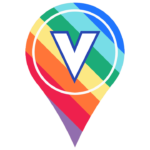
When you capture ALL the pins in a BVG, you’ll earn a special badge! If you’ve deployed in the BVG, do not worry — you’ll still be eligible to earn the badge! Here’s what the badge frame will look like — just imagine a beautiful garden design inside the circle:

We hope you keep an eye out for these NEW gardens, especially while you’re at a Munzee Event!

Munzee on!

May 21, 2025

🆕 Update: Renovations and Swaps Expanded! 🛎️🔄

We’ve got two exciting updates dropping today that’ll give you even more control over your Munzee strategy. First up, Destination Renovations are getting an upgrade—literally! Motels, Hotels, and Virtual Resorts can now earn three more stars each, so you can boost your map’s earning power like never before.

But that’s not all—Swaps just got a whole lot more flexible! Not only have we expanded the list of physical types you can Swap within, but now you can even Swap any physical Munzee back to a Greenie to help with tricky radius conversions.

Whether you’re perfecting your Destination setup or optimizing your physical deploys, these updates are designed to give you more options, more flexibility, and more fun! Read on for all the details, and don’t forget to check out the original Destination Renovations and Swap blogs for a refresher. To access these latest features, you’ll need to make sure you’re on the latest version of Munzee from the App Stores (4.1.234 on both iOS and Android), then restart the app to pull down the latest over-the-air update version #1180.

NOTE: The Swap feature is currently only available on the Munzee Website.

Add More Stars to Destinations!

Previously, certain Destinations could only be Renovated up to a certain number of stars. Now, the limits have been raised as follows:

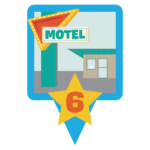
  • Motels: can now be upgraded to 6 stars!
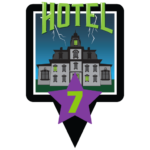
  • Hotels: can now be upgraded to 7 stars!
  • Resorts: can now be upgraded to 8 stars!

More Physical Types to Swap!

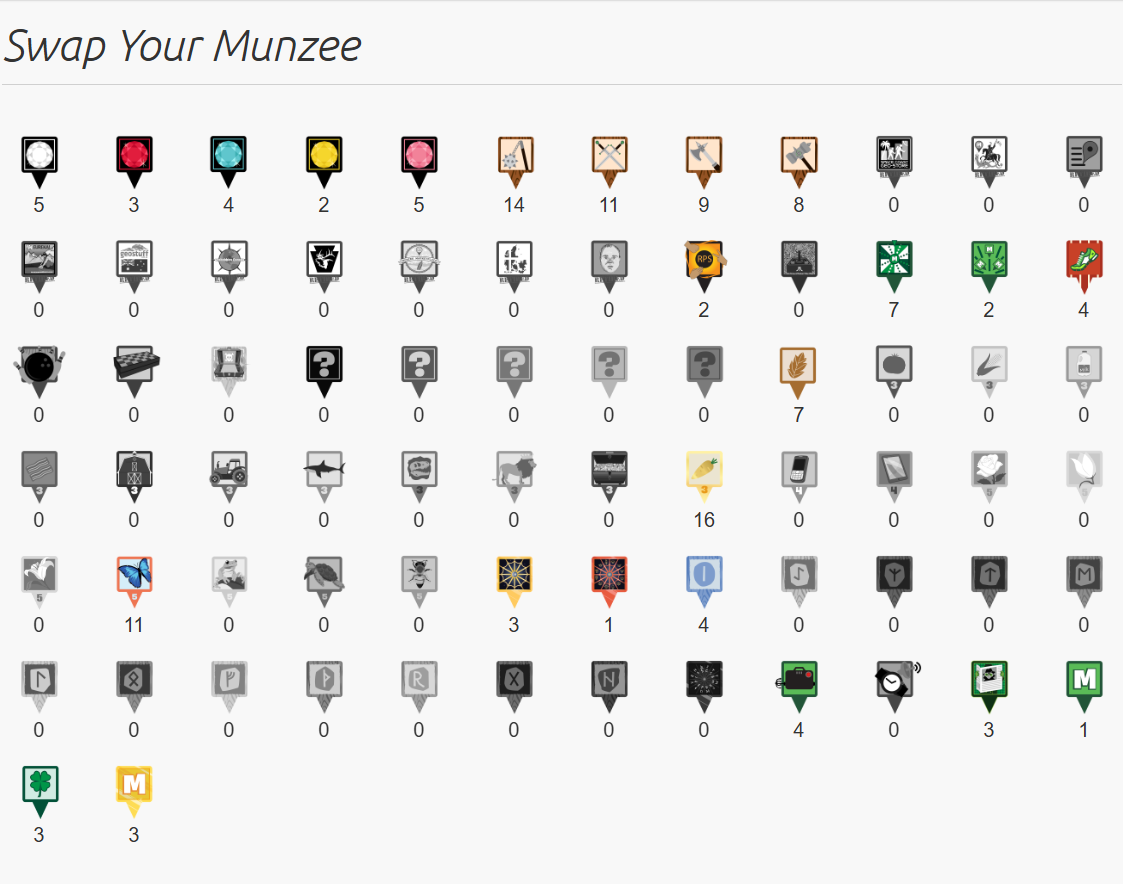
Previously, the Physical Swappable types were limited to a select few. While the rules for Hotels and Motels remain the same, we’ve added many more types to the “Within List” category — so now, it looks like this:

Why Swap to a Greenie?

Some Physical Munzee types are not directly swappable due to varying radius requirements. So, if you would like to change your munzee to one of these types, please do the following:

  1. Make sure your munzee, if converted to your desired type, has enough space around it to meet that type’s radius requirements. You can use tools like the [Deploy / Plan] tab of the Munzee Website Map to check.
  2. Swap your munzee to a Greenie.
  3. Go through the Convert process as usual.

Munzee on!

April 10, 2025

🔄🏡 NEW Relocate Credit to Move Treehouses & Skylands

Last time we made waves with bouncer destinations, we introduced Premium Treehouses and Premium Skylands—a game-changing upgrade that gave our Premium Members the ability to capture them twice a day. But guess what? We’re back with another exciting update—and this one comes straight from the top of your wish lists! We’re thrilled to unveil the brand-new Relocate Credit, a highly requested feature that gives Premium Members the power to move your Treehouses and Skylands to a brand-new location! Whether you’re creating a new hotspot or have moved for a change of scenery, this credit puts you in control. 🌍✨ Not a Premium Member yet? Sign up HERE to take advantage of all the perks!

You can purchase the Relocate Credit in the Online Store HERE.

NEW Relocate Credit

Have you ever wanted to pick up your Treehouse or Skyland and place it somewhere new? Now you can! With the brand-new Relocate Credit, Premium Members can finally give their destinations a fresh start—without losing any of the progress they’ve made! That means all previous captures, comments, photos, and other contributions tied to your destination will move right along with it.

This highly requested feature is exclusive to Premium Members and can only be used on the Munzee website—it’s not available in the app. Once you’ve purchased a Relocate Credit from the Online Store, head over to the website and follow the steps below to choose your new location:

  • After logging in to your account, go to your Deployed Munzees list on the website and click on the Treehouse or Skyland you would like to relocate.
  • Click on the new [Relocate] button on the right hand side, underneath the [Magnetize] button.
  • After confirming to use 1 Relocate Credit, the Munzee will be undeployed and have its location reset so that it can be redeployed the same way as the original, but in a new location.
    • Treehouses will appear back in your Undeployed Munzees list and must be redeployed inside the app.
    • Skylands will also appear back in the Quick Deploy list and must be redeployed inside the app.
  • NOTE – If you Relocate a Premium Treehouse or Premium Skyland, it will still remain as a Premium Destination when redeploying.
  • NOTE – This feature is not available to Trial Premium Members. Once the 7 day free trial is over, all Premium Features and benefits will be unlocked.

Now that your Treehouses and Skylands aren’t bound to a single location, the Relocate Credit opens up a whole new world of possibilities. 🌍 Happy relocating, and as always—Munzee on! 🦄✨

March 26, 2025

🎨 Sticker Studio – Customize Your Munzee QR Codes 🤳

Introducing the Sticker Studio, the ultimate platform for Munzee players to design and print their own custom Physical Munzee stickers! Whether you’re a seasoned player or just getting started, Sticker Studio lets you unleash your creativity by personalizing your own game pieces. With easy-to-use design tools and customized printing options, you can create unique QR code stickers that stand out in the real world. Elevate your Munzee experience and leave your mark like never before with Sticker Studio! Head to CuppaZee to start designing or read on to learn more!

Design Your Own Munzee Stickers!

  • You can use one of our pre-made sticker designs…
  • OR you can create your own with our Border, Side or Custom (Advanced) design tools!
  • It’s easy: Just Prep, Pick and Print with Sticker Studio!
  • PREMIUM MEMBERS can upload their own custom designs with ANY image! Not a Premium Member yet? Sign up HERE!
    • NOTE – Please keep the images and designs used on your custom sticker family-friendly. If any stickers with inappropriate designs are exported or printed, we can and will archive those Munzees and potentially take further action when reaching out to the player.

Prep Your Print Format

  • Full Page Sheets: Just printing to regular-sized paper? Pick your paper size, and choose how big you want your Munzees to be – Sticker Studio will automatically adjust the size of  those Munzees, and give you a PDF to print.
  • Label Sheets: Want to print to Label Sheets (e.g. Avery)? Sticker Studio handles that too – pick your type of labels, and you’ll get a PDF structured to fit those labels – magic!
  • Label Tape: Prefer to print on the go? Sticker Studio supports Brother P-Touch Label Printers, allowing you to print to label tape with no hassle, even from your phone with the CuppaZee app! (Editor’s note: Are we living in the future??? I remember this April Fools Day joke from years ago!)
  • Image Files: Want to print another way? Sticker Studio can also just export the Sticker images to a ZIP for you to use however you want.

Pick Your Munzees

  • Sticker Studio automatically finds all the physicals in your undeployed list available to print!
    • Need more? Quickly create new greenies through the “Create Non-Generics” button – just pick a number and go!
  • Sticker Studio will also show all “Generic Codes” you’ve purchased, so you can choose them to print just as easily!
    • Read on to find out more about purchasing Generic Codes below!

Print your Munzees!

  • Once you’ve selected your munzees, just press “Download” and you’ll get further instructions on how to print your chosen format.

WHAT ARE GENERIC CODES?

Generic codes are not attached to a specific account. They can be shared with family, friends, new players, or given away at events. Generic codes are also the only option for replacing another player’s missing sticker. This is a perk of the QRew & ZeeQRew program.

Would you like generic codes for your custom stickers? No problem! Sticker Studio makes it easy to stock up on Generic Codes so you can keep the fun going. After selecting a Sticker Design and Format, you’ll be prompted to choose the codes you want to use. If you’re running low on Generic Codes, simply click the “Buy Generic Codes” button right from the Sticker Studio interface — it’ll take you straight to the Freeze Tag Online Store where you can purchase more. You can grab 100 Generic Codes for just $5 — an easy and affordable way to make sure you’re always ready to print and play!

👉 Click here to buy Generic Codes directly

No need to worry about running out — Sticker Studio keeps track of your available codes and makes it simple to top up whenever you need!

What’s the difference between “non-generic” and “generics”?

This one is easy. Generic codes can be shared between accounts. They are attached to an account when deployed, or used to replace. Non-Generic codes are tied directly to the player account that creates them. Both types can be used with credits to convert to special munzees. Non-Generic codes are free while Generic codes come at a cost.

Updated Undeployed Limits for Creating Non-Generic codes

We’ve made some exciting updates to the undeployed limits for Premium Members in relation to your ability to create new non-generic codes!
Previously, the undeployed limit of 250 Munzees included both Physical and Virtual Munzees, but we’ve now split them up. Moving forward, the undeployed list will only count Physical Munzees toward the limit — Virtual Munzees will no longer count! This means Premium Players can hold more Physical Munzees in their undeployed list without worrying about Virtual Munzees taking up space.

To keep things balanced, we’re adjusting the max undeployed limit for Premium Members from 250 Munzees of any type down to 100 Physical Munzees. This change does not affect Generic Codes. You will be able to purchase generic codes above the limit of 100 because generic codes can be shared between accounts, and are used for maintenance.

Non-Premium limits remain unchanged at 25 total Munzees (both Physical and Virtual combined) in the undeployed list in order to create more non-generic codes. If you’d like to take advantage of these Premium bonuses, you can sign up online HERE!

This update gives Premium Players more flexibility to prep for their next big deploying adventure — a thank you for their support of the game.

See How the Magic Works!

Need a little help getting started with the Sticker Studio? You’re in luck! Our very own Craig (aka SeeMyShell) has put together an incredibly detailed walkthrough that shows you exactly how to design and print your custom Munzee stickers. Craig’s expertise and attention to detail make this the ultimate guide for mastering Sticker Studio — so be sure to check it out!

A huge shoutout to Craig for creating another amazing resource for the Munzee community! If you’ve been around for a while, you might remember when we welcomed SeeMyShell to the team — check out the announcement blog for a refresher. And don’t forget about the time we launched the Flat Aussie in his honor — read all about it here! Be sure to check out Craig’s other helpful tutorial videos while you’re at it — you won’t want to miss them!

#MunzeeOn

***We reserve the right to decrease the limit on individual players who are found to consistently deploy low quality stickers that fade quickly or disappear. Any player with concerns needs to contact us at support@munzee.com with evidence of short lived sticker deploys.
We recommend using high quality waterproof paper that will stand the test of time in the outdoors. We’ve lead by example with our vinyl stickers for 13 years, and expect players to create high quality stickers for others to enjoy.

March 3, 2025

📲 App Update: Activate Multiple Boosters and Rover Treats at once! 🆙🦴

To access this latest feature, you’ll need to make sure you’re on the latest version of Munzee from the App Stores (4.1.228 on iOS, 4.1.222 on Android), then restart the app to pull down the latest over-the-air update version #1170.

Activate Multiple Boosters

Now you can activate up to 12 of each booster type at once! This should hopefully cut down on the number of screens you have to tap through on busy days of play!

  • See the amount of booster credits you’ll be using, and the total time they’ll be active for!
  • After confirming, you’ll see the timer counting down as usual!

One thing to keep in mind though: after activating the booster(s), you’ll need to wait until the timer is up before you can activate more. 


Activate Multiple Rover Treats

Similarly, you can now activate up to 2 Rover Treats at once, quadrupling your capture range. Why only 2 you ask? Because they can also be stacked with the Capture Radius Booster and Distance Draught Potion — allowing for a truly expansive reach!

  • Normally, you’d need to be within 150 ft of an Amethyst to capture it.
  • With 1 Rover Treat, your capture range is doubled, so you’d only need to be within 300 ft.
  • However, we are 501 ft away in this screenshot.
  • Since we are 501 ft away, we are within 4 times the normal capture radius for Amethysts (4 x 150 ft = 600 ft).
  • This means the option to capture it with 2 Rover Treats will appear!

Get More Boosters and Rover Treats!

Due to the powerful abilities of these game pieces, they can be a bit hard to come by. Here’s how you can build up your inventory of them — please note these are subject to change, but at the time of writing the available options are:

Physical Deploy Booster

  • Freeze Tag Store: Physical Jewel Booster Pack, along with 1 Diamond, 1 Ruby, 1 Pink Diamond, and 1 Topaz for $20 (currently on Sale — normally $22.50!)
  • Redeem Store: Available for 15 Cake Credits
  • Gameplay:
    • Deploy 15 Urban Fits within 1 MHQ day to earn 1 booster!
    • Possible reward for opening QRates
    • Possible reward for Clan Wars

Virtual Deploy Booster

  • Freeze Tag Store: Virtual Jewel Booster Pack, along with 2 Sapphires and 2 Amethysts for $17.50 (currently on Sale — normally $20!)
  • In-App Store: Deploy Pack, along with 5 Temporary Virtuals for 1,750 Zeds
  • Redeem Store: Available for 20 Cake Credits
  • Gameplay: Possible reward for Clan Wars

Physical Capture Booster

  • In-App Store: Capture Pack, along with 5 magnets for 995 Zeds
  • Redeem Store: Available for 15 Cake Credits
  • Gameplay:
    • Possible reward for opening QRates
    • Possible reward for Clan Wars

Virtual Capture Booster

  • Redeem Store: Available for 35 Cake Credits
  • Gameplay: Possible reward for Clan Wars

Capture Radius Booster

  • Freeze Tag Store: ClanPak — comes in a set of 3, along with various other game pieces (too many to post here!) for $15
  • In-App Store: 1 Capture Radius Booster for 75 Zeds (currently on Sale — normally 100 Zeds!)
  • Redeem Store: Available for 20 Twigz
  • Gameplay: Possible reward for Clan Wars

Rover Treat

  • Freeze Tag Store:
  • In-App Store:
    • Rover Pack — comes in a set of 5, along with 1 Rover for 400 Zeds (currently on Sale — normally 650 Zeds!)
    • 10 Rover Treats for 350 Zeds (currently on Sale — normally 400 Zeds!)
    • 5 Rover Treats for 200 Zeds
    • 1 Rover Treat for 40 Zeds
  • Redeem Store: Available as a set of 10 for 100 Twigz
  • Gameplay:
    • Possible reward for Daily ZeeOps
    • Possible reward from Prize Wheel
    • Possible reward from Sir Prize Wheel
    • Possible reward from Fenrir
    • Possible reward for Clan Wars
    • Reward of 2 for maintaining your streak in the Daily Activity Tracker

Munzee on!

November 21, 2024

🪵 We’re Branching Out a Widdl with these NEW tPOBs! 🪵

Cappy has made an exciting new discovery in the Enchanted Woodlands: Meet the Widdlz! This all new line of temporary Player Owned Bouncers (tPOBs) have some unique traits, but it’s up to you to free the whimsical Widdlz from their wooden Trunkz! When you purchase a Widdlz Trunk you don’t know which Widdl will be inside, but as your collection grows your wooden critters will level up to new heights! Head to the In-App Store to purchase a Widdlz Trunk, or read on to learn more!

NOTE – Please restart the app and make sure you pull down the latest over-the-air update #1154

*If you’re more of a visual learner check out this Widdlz Walkthrough video!


Widdlz Trunk

The Widdlz Trunk is simply a blind box container for the Widdl bouncer inside. You can get a Widdlz Trunk for 150 Zeds in the In-App Store, and when you purchase it the Widdlz Trunk will open and you’ll randomly receive 1 of 8 different Widdlz!

🪵 Widdlz Details 🪵

Some Widdlz are sweet, while others can be a little Rotten, but every Widdl is ready for adventure! This is the first series of Widdlz, so you’ll be able to collect all 8 right out the gate, but there may be additional series in the future so don’t wait too long to start your collection.

Each Widdlz’ point structure is based on their level, which is shown in the table below:

Points:

Level Deploy Capture CapOn
1 50 50 25
2 63 60 29
3 78 72 33
4 98 86 38
5 122 104 44
6 153 124 50
7 191 149 58
8 238 179 67
9 298 215 76
10 373 258 88

How do you increase your Widdl’s level? Keep opening Widdlz Trunkz! Once you receive a duplicate Widdl, that type will level up! Pay attention to the pop-up after opening your Trunk — the icons let you know if you’ve received a new Widdl, leveled up your Widdl, or reached the max level for that Widdl!

Landing Pad and Duration:
To increase the chances of these curious creatures being captured, they will bounce EVERY HOUR. After 5 Days, they will return to the earth and be archived. To keep things simple for newer players, ALL Widdlz will bounce to the landing pads listed below:

  • Greenies
  • Virtual Colors
  • Widdlz Workshop (learn more below!)

Although we’re always sad to see a Widdl wear itself out, their hard work will not go in vain! When a Widdl has ended its journey it will bring the owner a special new type of credit called Twigz! These Twigz can be exchanged for prizes in the Redeem Store, and the higher the level of your Widdl the more Twigz they’ll bring back! You’ll want to deploy as many Widdlz as possible to not only complete your collection, but to also build an army of expert foragers…

Your Widdlz will bring back Twigz as rewards for all their hard work!


💫 Wish Upon A Star! 💫

As mentioned above, you can of course deploy more Widdlz by opening more Widdlz Trunkz. However, if you’ve been collecting Shooting Stars on your Daily Stroll, you can also deploy more Widdlz at Wishing Wells! That’s right, now when you interact with your local Wishing Well you’ll be able to use Stars to make TWO types of wishes. Here you’ll also be able to see your collection of Widdlz and what level each has reached.

To get started simply:

  1. Head to your nearest Wishing Well
  2. Tap on its icon
  3. Tap [Details]
  4. Tap [Make A Wish]
  5. Tap [Widdlz]
  6. Tap [Deploy] on your desired Widdl type — make sure you have enough Shooting Stars!
  7. Tap on the button with the Shooting Star cost to confirm!

Please note that you will only be able to deploy Widdlz that you’ve already received from a Trunk previously, and that it will deploy the highest level you’ve attained for that type.

As for deploying Well Wisps, the process is still mostly the same, you’ll just see an extra screen — the new “Make a Wish!” menu shown above! Now that your Widdlz are ready to adventure around the world, they’re going to need some rest stops along the way…


🪚 Widdlz Workshop Details 🔨

For those eager to meet these tiny tree friends, you can set up a Widdlz Workshop to attract them, and as a bonus Cubimals will also find sanctuary at these workshops! Like a few other temporary Bouncer Destinations, these will remain on the map for 3 Days — it’s not safe for Widdlz to stay in one place for too long! Pick one up in the Freeze Tag Store HERE for $2 or in the In-App Store for 250 Zeds!

Widdlz Workshop
Points
  • Deploy: 250
  • Capture: 10
  • CapOn: 50

Badges

There are 4 badge lines for Widdlz — below are examples of the first 3, with the last staying a secret for now.

  1. Unique type deploy badges — deploy each Widdl type to collect them all!
  2. Overall deploy badges — the more Widdlz you deploy, the merrier!
  3. Overall capture badges — capture as many Widdlz as you can find!
  4. Overall level badges — max out all your Widdlz’ levels to earn a special badge and additional prizes!

There are also badges for deploying and capturing a Widdlz Workshop! You can see what these badges look like below.


🪵 Get By With A Widdl Help From Our Friend!

*We understand that despite their short stature this is a lot of information to take in! So let our friend SeeMyShell help you through the wonderful world of Widdlz with his walkthrough video!

This new line of bouncers is just the beginning — expect more cute companions to be whittled in the future!

Munzee on!

October 18, 2024

📲 NEW Update! Visit The Redeem Store In The App! 🧰✨

We’re excited to announce a NEW App Update! Now you can access the Redeem Store via the app, which should be much easier to navigate on mobile devices than our webpage. Head to the Camp Hub and tap the Enchanted Toolbox to get craftin’ with your credits!

Although the Redeem Store itself has been around for a while, this app update continues our quest of making the game more accessible for new and veteran players alike! As a refresher in this section you can forge different Munzee types using various shards, stamps, cogs, and other credits that you’ve earned over time. Not only can you create new munzee types like Mechz, but you can also redeem your undeployed munzees for new credits like Jewel Shards to make superior game pieces.

Check out your inventory, and you might also see some discounted products for you to redeem as well! Be sure to visit each tab in order to take advantage of the Redeem Store deals while you can. To access this latest feature, you’ll need to make sure you’re on the latest version of Munzee from the App Stores (4.1.221 on iOS, 4.1.222 on Android), then restart the app to pull down the latest over-the-air update version #1147.

Munzee on!